
Resources
Email delivery monitoring guides and resources.
Connect your email provider, understand delivery status, and find the right message or resource when something goes wrong. Resource availability depends on your provider and account permissions.
How to connect Resend to MailOps
- Sign in to your MailOps account and choose Resend during onboarding, or open Settings → Provider Connections.
- Choose Continue with Resend, or add a Resend API key with the permissions required to read your provider data.
- Let the app verify the connection, then open the dashboard or browse your provider resources.
- For Pro push alerts, configure the provider webhook and choose event preferences in Settings.
The demo runs locally with sample data. Exit demo mode before setting up a real connection.
Read Resend’s API key documentation →How to monitor Mailgun from iPhone
- Choose Mailgun in onboarding or Settings → Provider Connections.
- Enter your Mailgun API key and the matching region and domain, then verify the connection.
- Open Home or Activity to review recent events synced from Mailgun logs.
- Configure a domain webhook if you want email event push alerts with MailOps Pro.
Recent history depends on your provider’s retention window. Mailgun log sync does not send push alerts for historical events.
Review Mailgun support and limitations →Troubleshooting transactional email
Why was an email sent but not delivered?
A successful sending request is only one step in delivery. Start with the latest provider event, then check the message details before deciding what to fix.
| Status | What it means | What to check |
|---|---|---|
| Sent | The provider accepted the sending request and will attempt delivery. | Look for a later delivered, delayed, bounced, or failed event. |
| Delivered | The recipient’s mail server accepted the message. | If the user cannot find it, ask them to check spam and filtering. Server acceptance does not confirm inbox placement. |
| Bounced | The recipient’s mail server permanently rejected the message. | Read the provider’s rejection details and verify the recipient address before attempting another send. |
| Delayed | A temporary issue prevented immediate delivery. | Check for a later event and review the provider’s delay details. |
| Failed | The message could not be sent because of an error. | Check the reported error, provider limits, credential permissions, and sending-domain verification. |
Event names and details differ between providers. Definitions above follow Resend’s email event documentation.
Investigate delivery problems from your phone
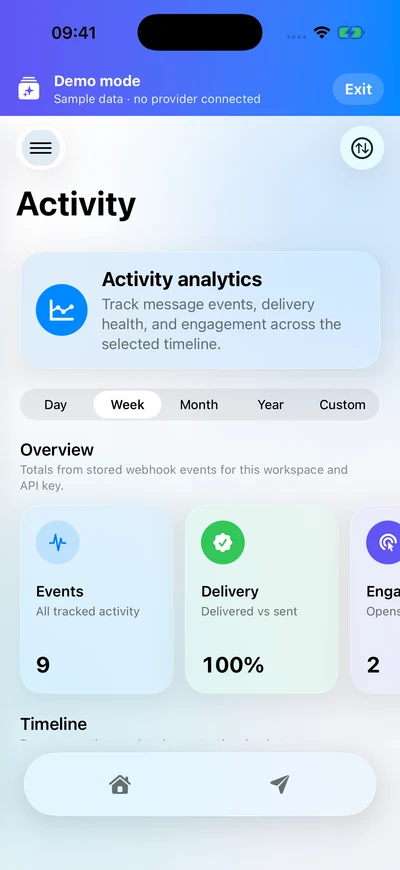
In MailOps, start with the delivery dashboard’s attention queue, find the email in Sent, and review the available message and event details. Use Activity to see whether the issue is isolated or appears across more messages in the selected period. Correct sending configuration or application issues in the system responsible for sending your email.
For ongoing monitoring, enable the webhook event types you need and set workspace or domain preferences. Check that iOS notifications are allowed. Explore MailOps monitoring and alert features.